Skip to content
View in the app

A better way to browse. Learn more.

Mopar1973Man.Com LLC

A full-screen app on your home screen with push notifications, badges and more.

To install this app on iOS and iPadOS
  1. Tap the Share icon in Safari
  2. Scroll the menu and tap Add to Home Screen.
  3. Tap Add in the top-right corner.
To install this app on Android
  1. Tap the 3-dot menu (⋮) in the top-right corner of the browser.
  2. Tap Add to Home screen or Install app.
  3. Confirm by tapping Install.
  • Entries

    2
  • Comments

    0
  • Views

    310

Entries in this blog

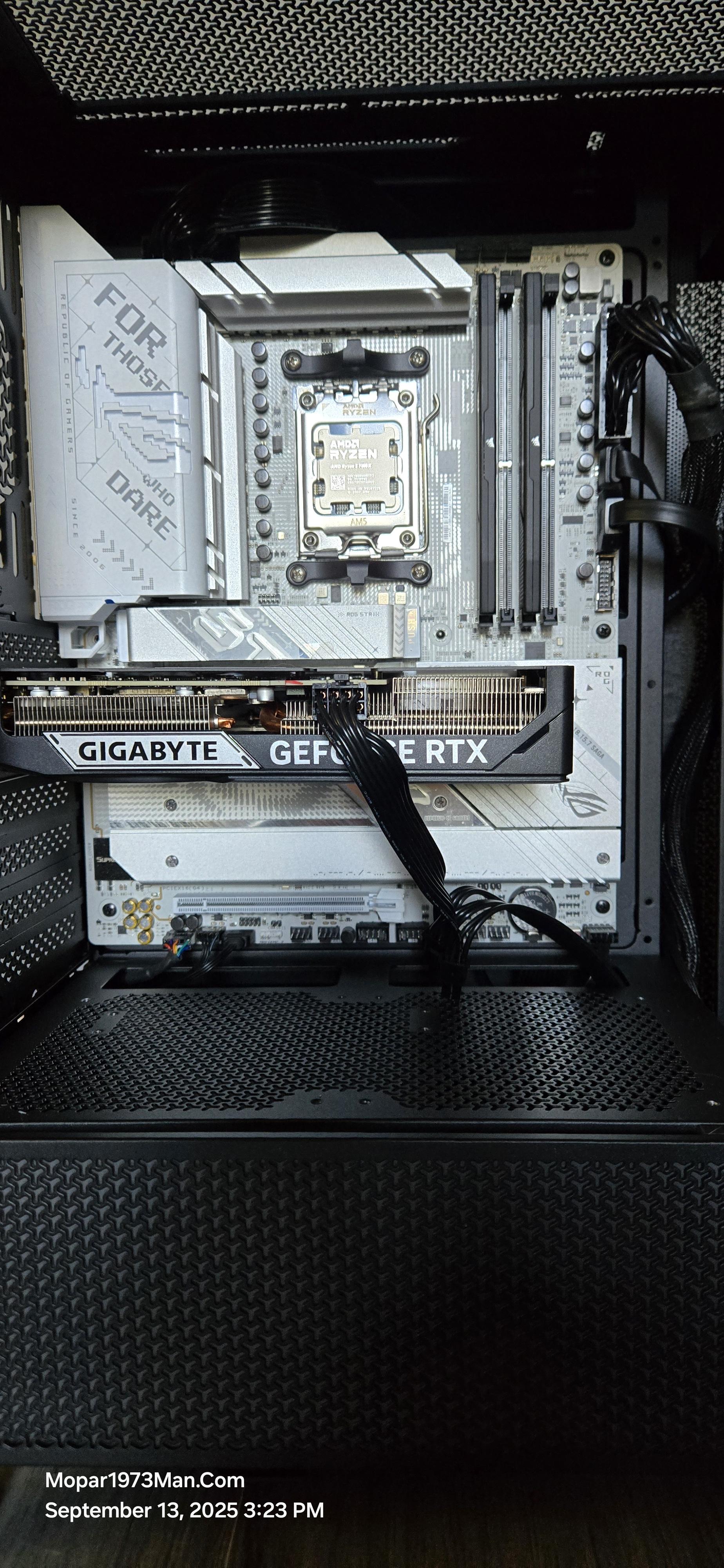
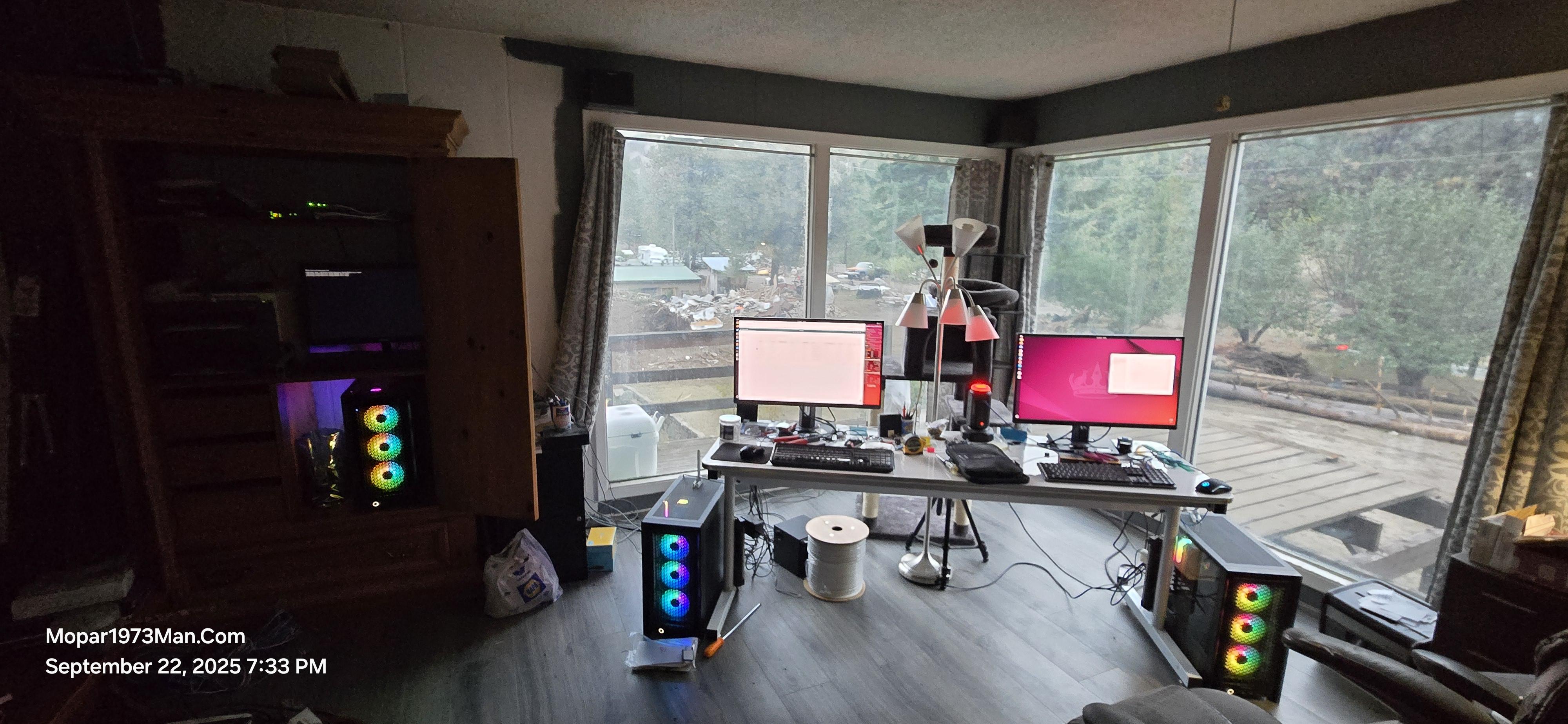
Been a moment. I've been busy building these 3 machines. SERVER Now, as for building a server, this is my true first Linux Server I'm building. I've created plenty of desktop and laptop Linux systems. Now, let's roll back the clock to the good old days of Microsoft DOS 5. Starting a server is very interesting. The entire install is very strange, being we are all used to working with a mouse and keyboard. 😋 Now drop the mouse and just a screen and keyboard. Yup, there is no graphical environmen
First, I have to say, "If it weren't for bad luck, I wouldn't have any luck at all!" I've just had a series of things go wrong. First off, we are down to a single laptop for doing website work. I lost my old yellow box computer it finally died after 20 years of service. The old AMD CPU, the video software is no longer supported by Ubuntu. Just too old. Now my @MoparMom computer was our house server for the video cameras and storing the backups. This machine died with hard drives. Again 20 year

Account

Navigation

Search

Search

Configure browser push notifications

Chrome (Android)
  1. Tap the lock icon next to the address bar.
  2. Tap Permissions → Notifications.
  3. Adjust your preference.
Chrome (Desktop)
  1. Click the padlock icon in the address bar.
  2. Select Site settings.
  3. Find Notifications and adjust your preference.