

What I've Been Up To: Landslides, Servers, and a Talking Computer Named Raymond

By Mopar1973Man in Titanium
· 8 views
What I've Been Up To: Landslides, Servers, and a Talking Computer Named Raymond
Oct 21, 2026 · @Titanium
If you've noticed I've been a little quiet around here, this post is why. The landslide took my shop and every tool in it, and my cancer means I'm not allowed to lift more than 40 pounds. So I've been putting my energy into what I can still do, which is sharing what I know and building things with computers.
The Hillside
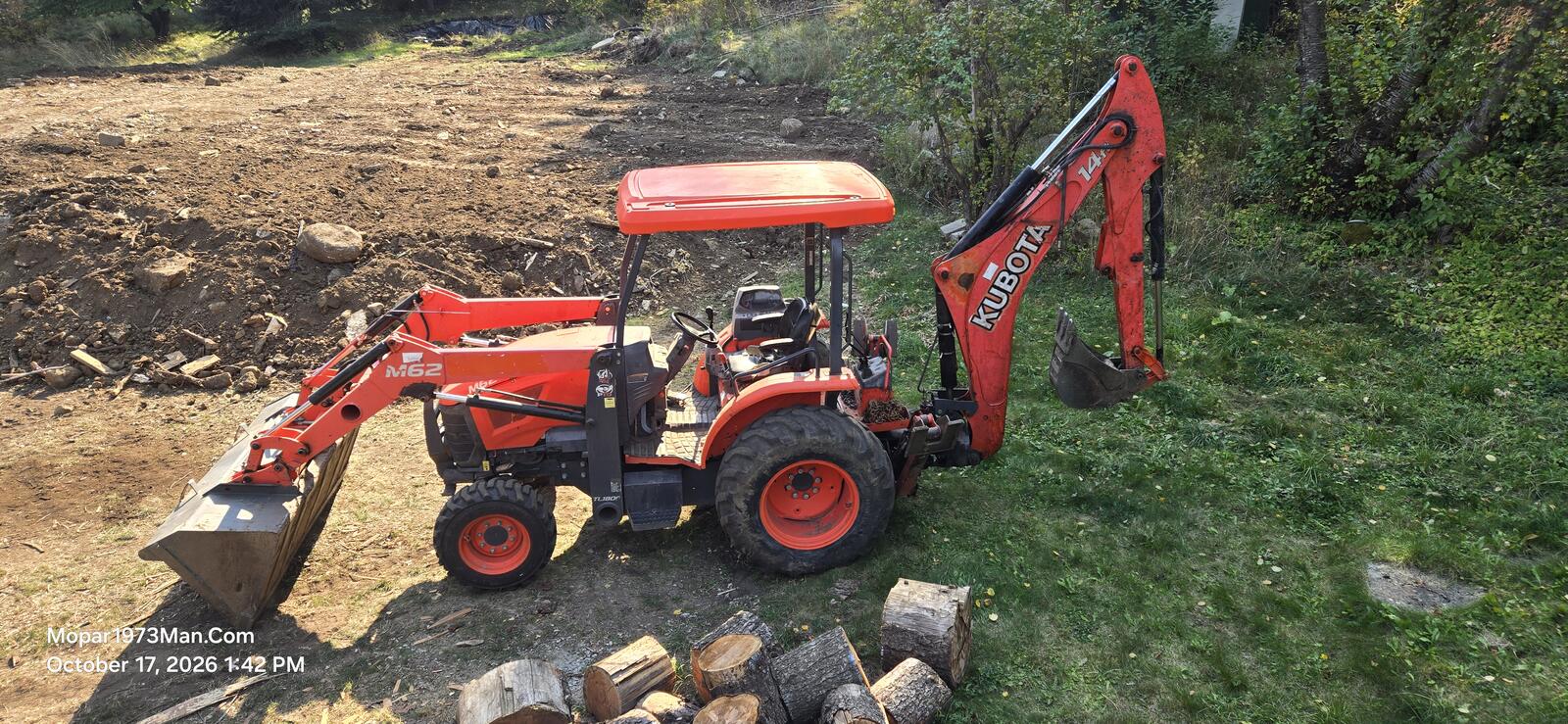
On May 29th, 2025, the hillside behind the house let go and buried the diesel shop. Everything in it was destroyed, tools included. Since then, Tweety Bird and I have been cleaning up, and this past June I bought a Kubota M62 tractor to do the heavy moving my back can't. We're still sifting the slide dirt for debris, saving the bigger concrete for a foundation, and planning a 40-foot connex box as a mini shop for fuel, firewood, and tools. I'll post more as it takes shape.
What I Still Have: The Knowledge
I can't turn wrenches right now, but I haven't lost what I know, and that was always the most valuable thing in the shop.
I started running a BBS in 1984 at age 14. I graduated from ITT Tech in 1989 and ran Cloud 10 Computers, a custom PC building business, from 1994 to 2008. In 2004 I hand-coded my first website in plain HTML4. On October 4, 2007, I started Mopar1973Man.Com as personal notes for fixing Dodge Ram Cummins diesels, so I wouldn't have to figure out the same repair twice. Those notes grew into the site you're reading now.
Over the years, people have found it from all over. I've had calls and messages from Poland, Australia, and Germany, among other places, and many of them keep coming back to the site. That tells me the knowledge here is worth something, even with the shop gone.
So I'm building a way to keep putting it to work:
More articles. I want to write up the stories behind what I've done, including Cummins repair notes, the computers and networking side, and the landslide itself, and explain how I did each one so you can follow along.
One-on-one help. If you're stuck on a Cummins problem, I want you to be able to talk to someone who has been through it.
Paid consulting calls. I'm setting this up through the site's own subscriptions and gift cards, so booking time with me is simple. It's a way for me to keep helping people with these engines without a shop and without lifting a thing.
Video. I'd like to add video to the mix, so you can see the problem explained and not just read about it.
Vehicle Maintenance add-on. I'm also building a custom add-on for the forum where each member can keep their own garage and log service records: date, mileage, service type, cost, parts, and reminders for the next service.
Taking Care of the Live Site
I've spent a good chunk of October on the server that runs the site. Here's the short version:
I upgraded the forum software to Invision Community 5.0.20.
The site now runs PHP 8.3, up from 8.2.
I added stronger browser security headers and tightened up how the server handles logins.
I tracked down and fixed a mail problem that was quietly blocking outgoing email. It was a one-line relay rule that had been missing, and it took a while to find.
None of this changes how the site looks, but it keeps things running safely, which matters more now that I'm adding paid services.
The Home Network Rebuild
The rest of my energy has gone into rebuilding the home network from the ground up.
Storage. The home server has four 4TB NVMe drives, which I pooled into one ZFS array with redundancy so a drive failure doesn't take anything with it. Each user gets their own managed slice of space. I did lose some old camera footage along the way when a partition got deleted before I'd migrated it. That one was a lesson, and the cameras are recording fresh footage now.
Backups. Every night at 2AM the server wakes the workstations, backs up their data, installs updates, and puts them back to sleep. It never touches a machine while someone is logged in.
Weather station. My AcuRite Atlas feeds a custom WeeWX setup I built that reads the data straight from the cloud, while the weather service keeps getting its own copy as before. I recently wiped the database clean to start fresh, so the history begins from mid-October.
Power. An EG4 6000XP inverter now handles the house after my old Trace inverter blew. It runs off the 48V Trojan battery bank.
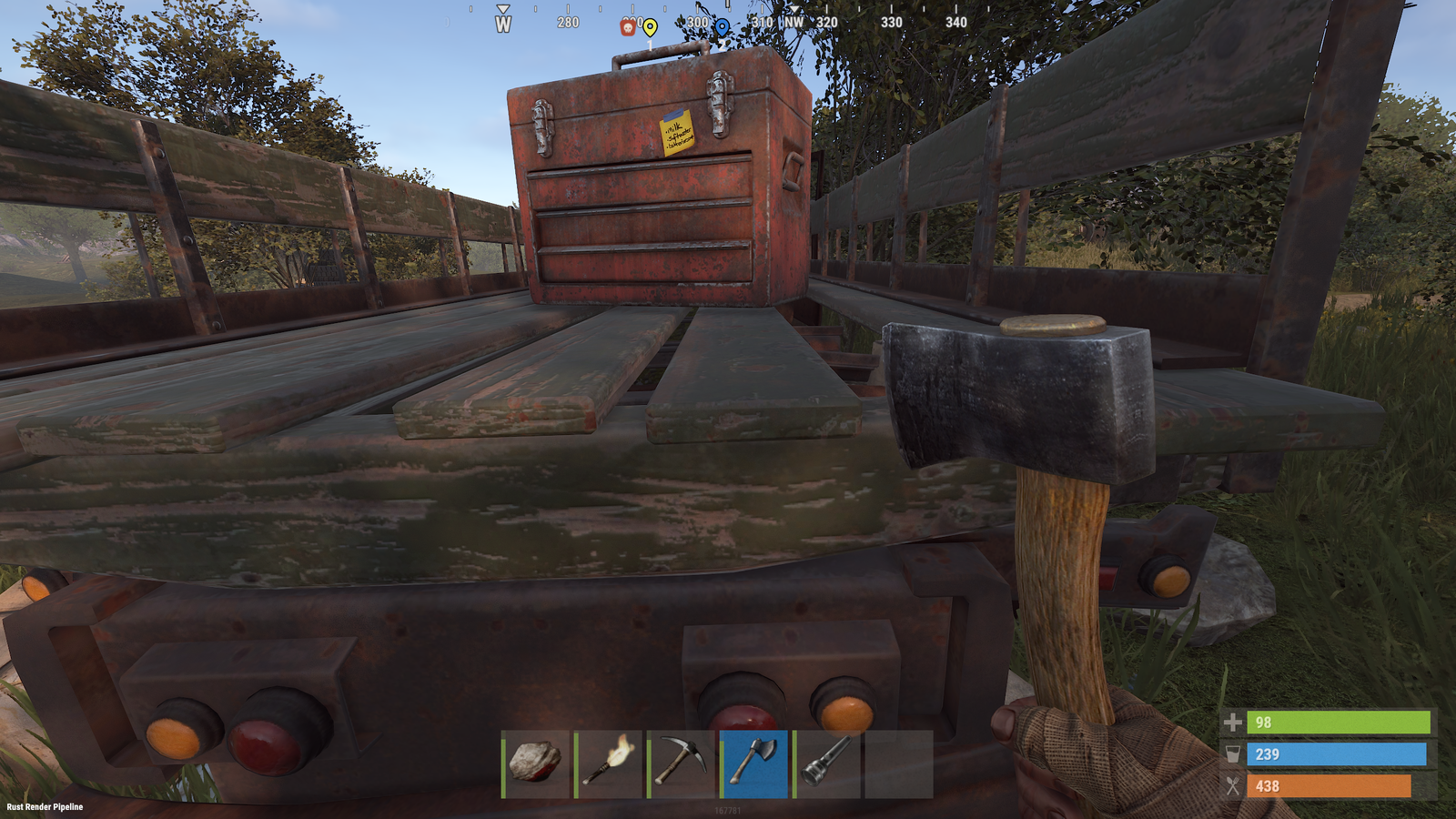
Game server. It's not all work. The home server also runs my own Rust game server, just for fun. Tweety Bird and I both play on Ubuntu Linux through Steam, so it's something we can do together from our own desktops. I moved it onto the ZFS pool with everything else, so it has plenty of room and gets the same protection as the rest of the server.
Everything at a Glance: My Conky Dashboard
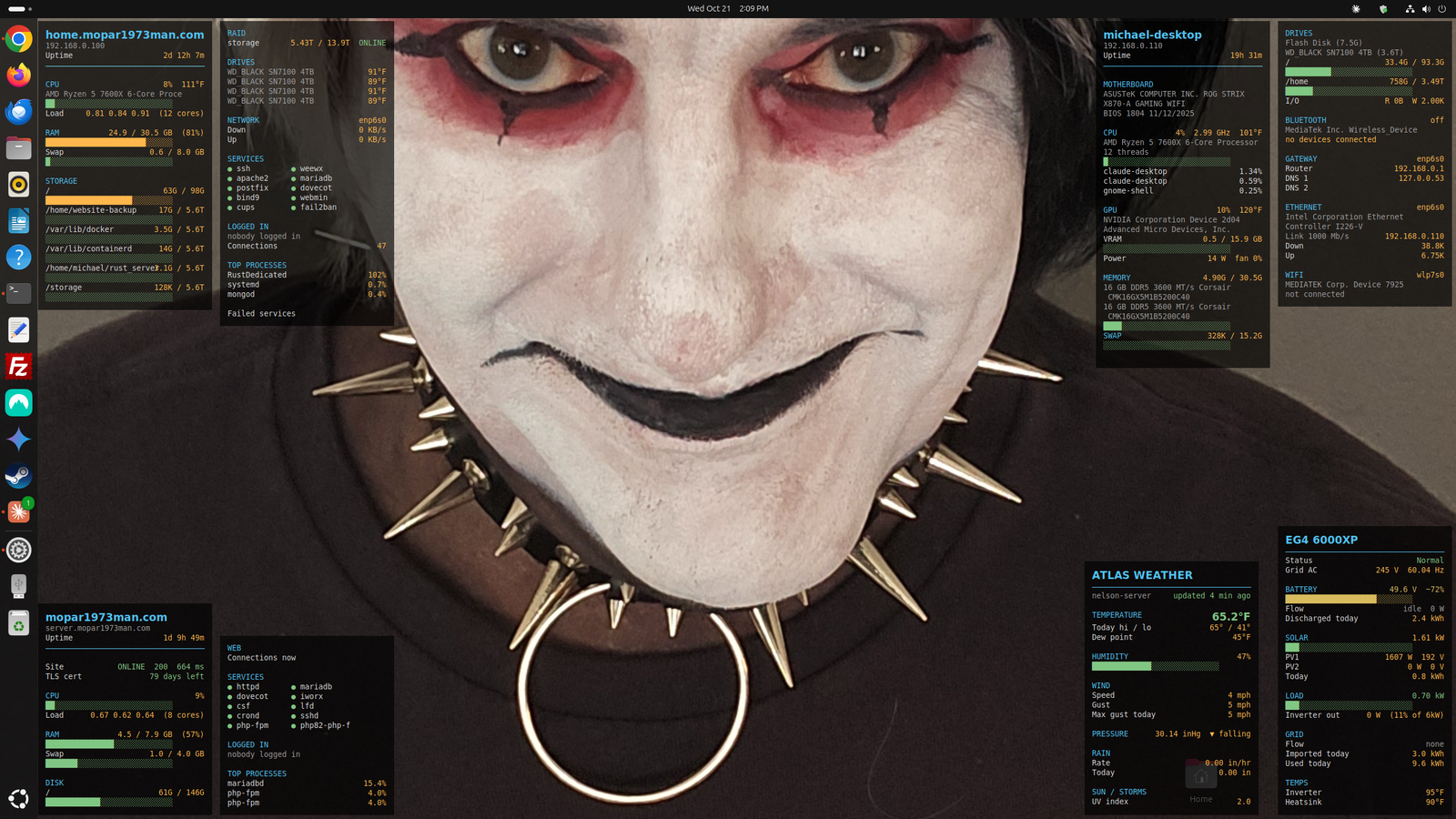
With this many moving parts, I needed a way to see the whole picture without logging into five different things. So I built a set of Conky panels that sit right on my desktop and start automatically every time I log in. They show me:
The live website server. This is the server running mopar1973man.com, so I can tell right away if the site is healthy.
The home server. CPU, memory, storage, and the rest of what's running behind the scenes at home.
The EG4 inverter. Battery and power status pulled from the inverter's cloud portal, so I always know how the house is holding up.
The weather station. Live readings from the Atlas, straight from the WeeWX setup on the home server.
My own desktop. A main hardware and network panel for the machine I'm sitting at.
The panels are tucked into the corners of my screen with the longer ones wrapped into two columns, so they stay out of the way but are always there when I look up. Two servers, the power system, and the weather, all in one glance. I'm planning to copy the same setup to Tweety Bird's computer too.
Meet Raymond
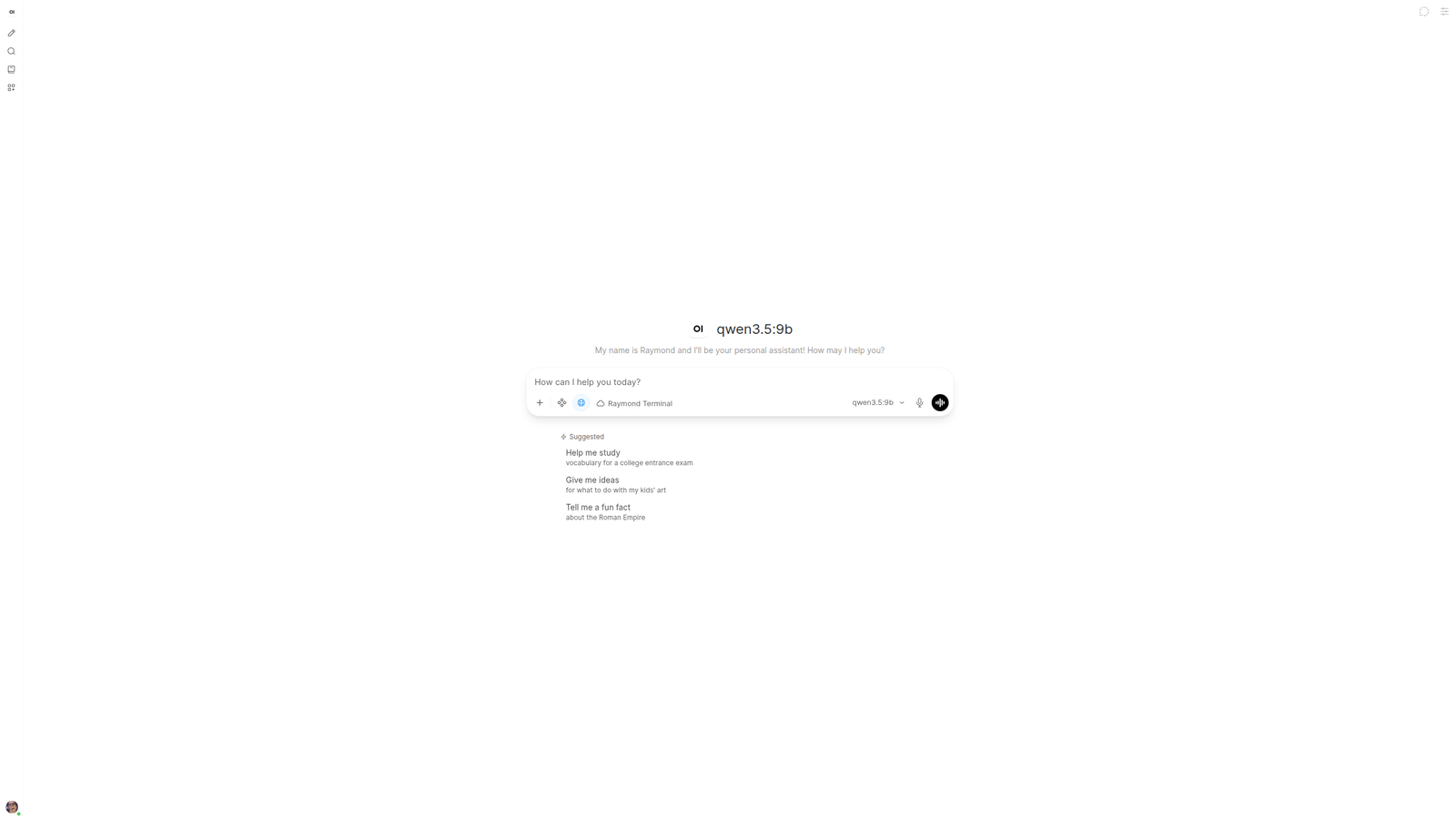
The project I've had the most fun with is Raymond, my local AI assistant. Both workstations have an NVIDIA RTX 5060 Ti with 16GB of video memory, so I'm running AI models right here at home with Ollama instead of sending everything to the cloud. The server acts as traffic cop. It wakes up whichever workstation is available and sends the request there.
I talk to Raymond through a web interface, and he talks back with a voice. He can run commands and work in his own sandboxed folder. He can also connect to the workstations through a limited account, which is enough to check the nightly maintenance logs for me. I'm still testing models to see how far a local setup can go on the kind of work I do.
Thanks for Sticking Around
Thanks to everyone who has called, checked in, or just kept coming back to the site while I've been busy. The shop will come back, and in the meantime the knowledge is still here. I'll keep posting updates as the new features go live.
Until next time,
Mopar1973Man






Recommended Comments