For an AIO (All in One) package, it's a super nice and super easy to install in your PC or server case. In my case, I opted for the server case because the machine is running 24 hours a day and 7 days a week. Easy to install. The radiator is already prefilled with coolant and all the needed additives. Seal cooling system. During the install you have the option of which way you want the fans to blow. Since the radiator is in the front face of the case, I'm blowing inward into the case so all heat rises in the rear of the server case and allows the top case fan to blow the heat out.
I set the motherboard features up to run as silently as possible. The water pump is only powered 80% right now. The fans ar even lower at 50% power level. You can see the CPU performance keeping the internal core temperature down. Hence why the text color is blue. 43℃ is 109℉, pretty cool right there. Internal cores. 26℃, which is 78℉. The server is always busy recording camera footage and handling system backups for all of our devices. Workstations are automatically done once a week but a hitch is if the machine isn't used the backup is missed. Soon I'll create a way for the server to wake up workstations to run maintenance like backups and other tasks.


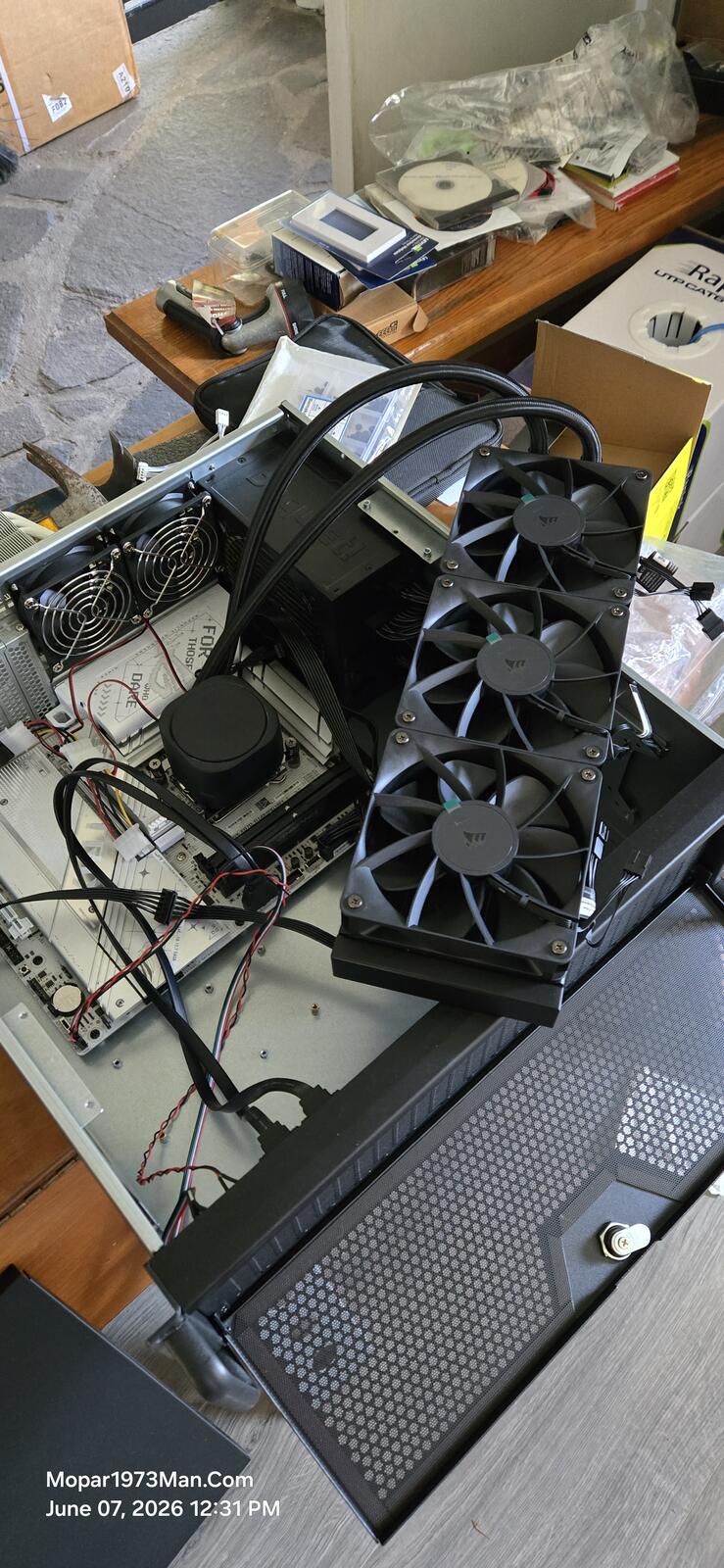

For an AIO (All in One) package, it's a super nice and super easy to install in your PC or server case. In my case, I opted for the server case because the machine is running 24 hours a day and 7 days a week. Easy to install. The radiator is already prefilled with coolant and all the needed additives. Seal cooling system. During the install you have the option of which way you want the fans to blow. Since the radiator is in the front face of the case, I'm blowing inward into the case so all heat rises in the rear of the server case and allows the top case fan to blow the heat out.
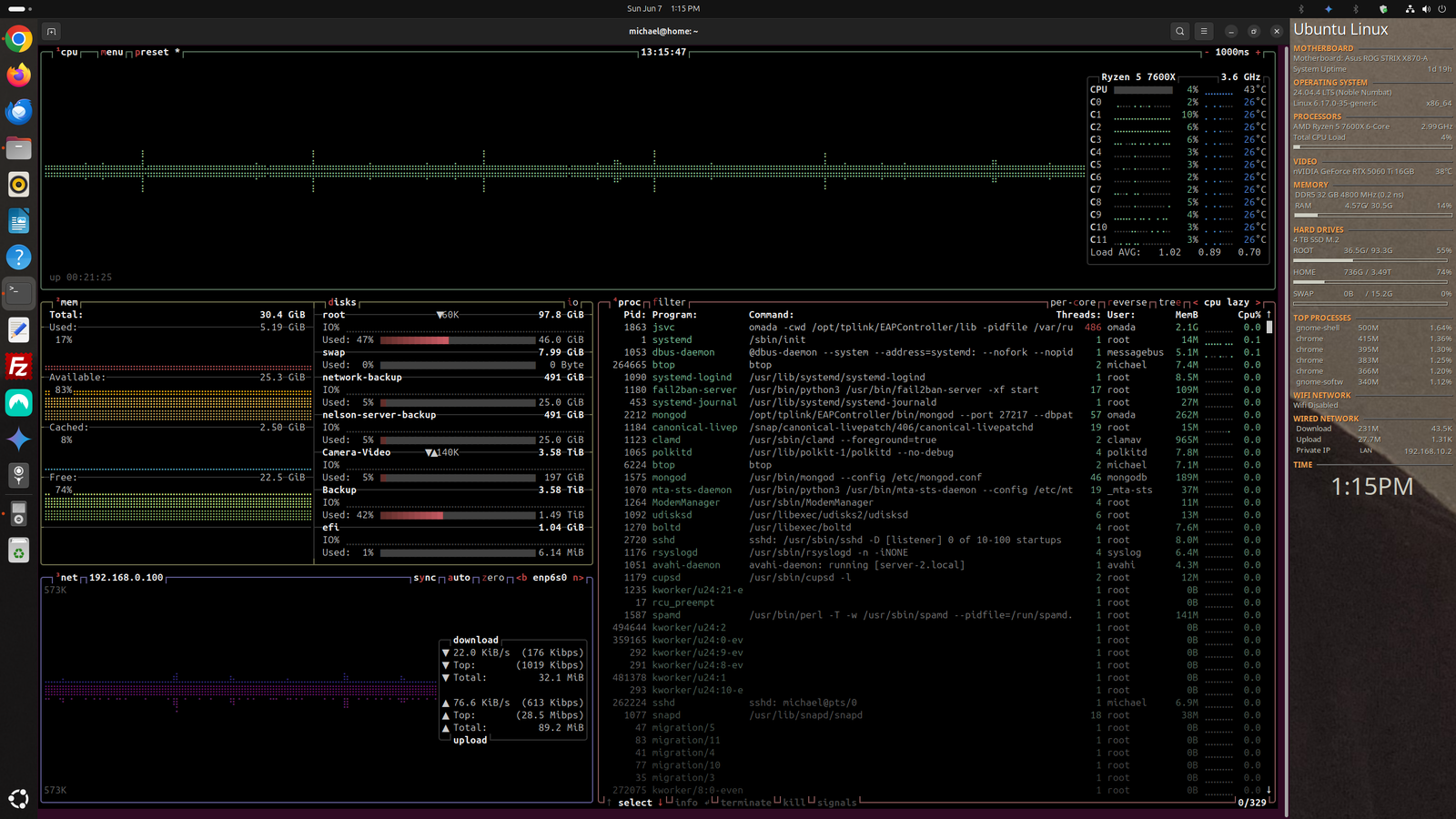
I set the motherboard features up to run as silently as possible. The water pump is only powered 80% right now. The fans ar even lower at 50% power level. You can see the CPU performance keeping the internal core temperature down. Hence why the text color is blue. 43℃ is 109℉, pretty cool right there. Internal cores. 26℃, which is 78℉. The server is always busy recording camera footage and handling system backups for all of our devices. Workstations are automatically done once a week but a hitch is if the machine isn't used the backup is missed. Soon I'll create a way for the server to wake up workstations to run maintenance like backups and other tasks.