I've been a computer guy since I started running a BBS back in 1984, and one thing hasn't changed in all that time: I like to see what my machines are doing without having to go looking. Lately I've been doing that with Conky, a lightweight system monitor that draws live stats right on the Linux desktop. No browser tab, no web dashboard, just the numbers sitting on the desktop where I can glance at them.
What is Conky?
Conky is a small, free program that paints system information directly on your desktop background. It reads a plain text config file, so you decide exactly what shows up, where it sits, and how it looks. It barely uses any CPU or RAM, which matters when it runs all day.
My setup: three panels on one desktop
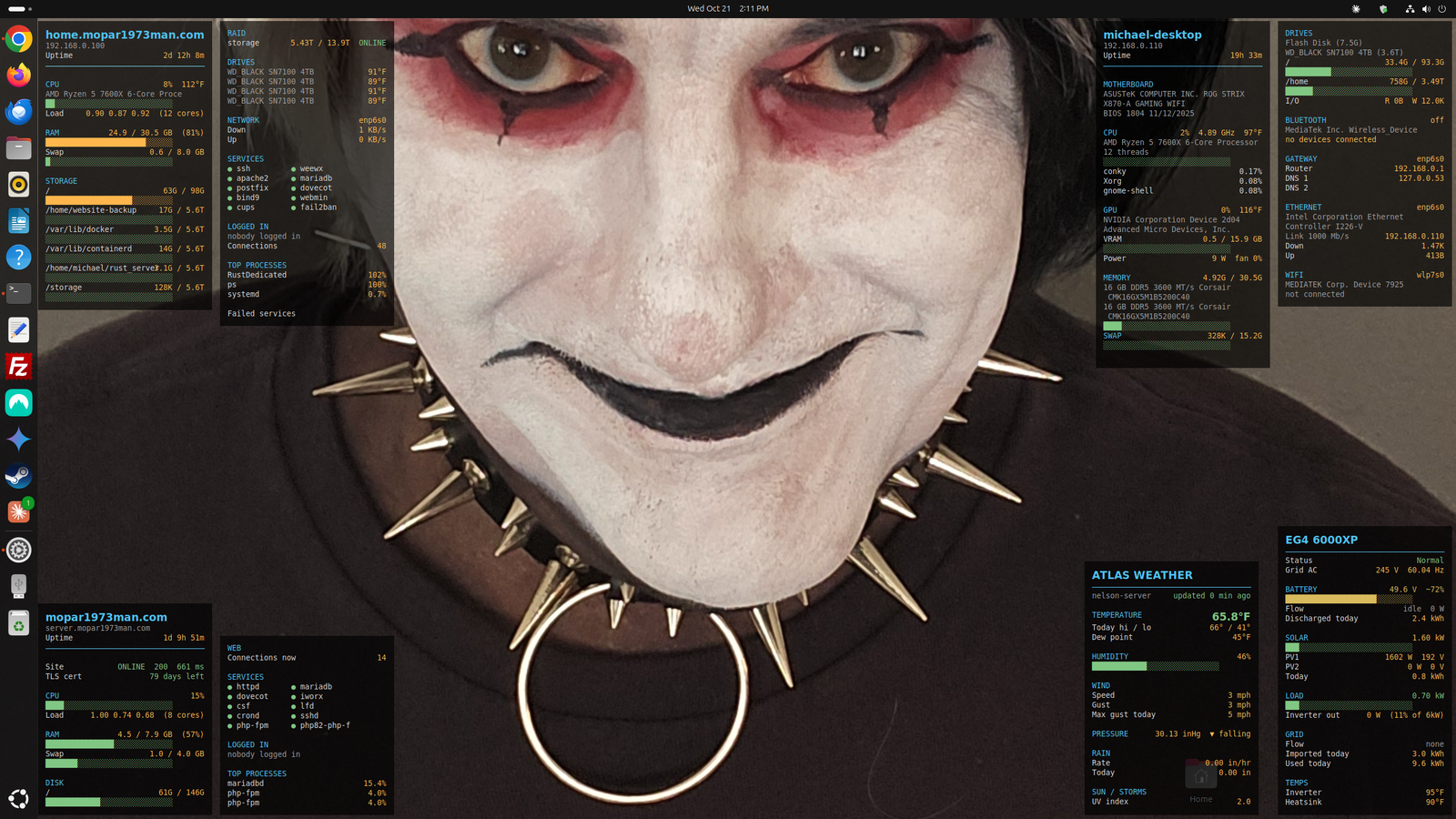
On my main workstation I run three separate Conky panels, all starting automatically at login. The two on the left watch servers, and the one on the right watches the workstation itself.
This is the full health report for my home server, shown on my desktop. The server has no monitor attached, so this panel is how I see what it's doing. From top to bottom:
Header: hostname, IP address, and uptime.
CPU: Ryzen 5 7600X usage, temperature in °F, and load average across all 12 threads, with a bar graph.
RAM and swap: used versus total, with bars. The bar turns red when memory gets high.
Storage: each mount point separately (root drive, website backup, Docker, containerd, my Rust game server, and the main storage pool), each with used versus total and its own bar.
RAID: status and capacity of the storage array. It currently reads ONLINE.
Drives: the temperature of each of the four 4TB NVMe drives.
Network: live download and upload speeds.
Services: a green dot next to each service that's running (ssh, apache2, postfix, bind9, cups, weewx, mariadb, dovecot, webmin, and fail2ban).
Logged in: who is connected, from which IP, and the number of active connections.
Top processes: the biggest CPU users, plus a "Failed services" line at the bottom. If a service ever dies, it shows up there.
This one watches the production server. It's smaller and focused on whether the public site is healthy:
Site status: whether the website is ONLINE, the HTTP response code (200), and the response time in milliseconds. It's a quick check that the site is serving pages.
TLS cert: days left before the SSL certificate expires, so I never get caught by a surprise expiration.
Server info: the server's hostname and uptime.
CPU, RAM, and swap: the same bar-graph style as the home panel, with load average across 8 cores.
Disk: root drive used versus total.
Web: the number of connections to the site right now.
Services: status dots for httpd, dovecot, csf, crond, php-fpm, mariadb, iworx, lfd, sshd, and the PHP 8.2 FPM service.
Logged in: shows if anyone is logged into the server.
Top processes: the biggest CPU users. Database and PHP processes usually lead on a web server.
3. Workstation panel (michael-desktop)
The tall panel on the right side of the screen covers the machine I'm sitting at:
Header: a big clock, the date, the hostname, and uptime.
Motherboard: make, model, and BIOS version.
CPU: usage, clock speed, temperature in °F, a live graph, and the top three processes.
GPU: usage, temperature, VRAM used versus total, power draw, and fan speed.
Memory and swap: used versus total, with bars.
Drives: each disk with used versus total, plus live read and write activity.
Bluetooth, gateway, Ethernet, and Wi-Fi: link speed, live down and up graphs, and connection status.
Why separate panels instead of one big one?
Each panel can be edited, restarted, or turned off on its own.
One broken config doesn't take down the others.
Panels can be positioned independently, so the layout stays clean.
Copying a panel to another computer is just copying one file.
All the config files live in ~/.config/conky, so they're easy to back up and copy to another machine.
A few choices I made
Temperatures in °F. Conky defaults to Celsius, but I think in Fahrenheit, so I switched everything over.
Autostart at login. A monitor you have to remember to launch isn't much of a monitor.
Monitoring servers remotely. The servers don't need their own screens. The desktop panels pull the numbers and show them where I'm already looking.
Color as a warning. Bars and numbers change color when something gets high, so trouble stands out without reading every line.
How they work together
The home panel is about hardware and storage health. The live panel is about whether the public site is up and the certificate is good. The workstation panel covers the machine I'm using. Side by side, one glance tells me whether everything is okay.
Ideas I'm working on
Roll it out to the other workstation. I plan to copy the same setup to my wife's desktop so both machines get the same view.
More alerts at a glance. More color changes when a temperature, RAID state, or disk goes out of its normal range.
Bigger-picture monitoring. Anything else that would warn me early if something is going wrong with the site or the servers.
Want to try it?
On Ubuntu and Debian-based systems, installing Conky is a single package install, and the rest is editing a text file. If there's interest, I'll post my actual config files and walk through how to build a panel step by step.
If you're running Conky yourself, or have ideas for what else I should be watching, post them below. I'm always looking for something new to put on the desktop.



I've been a computer guy since I started running a BBS back in 1984, and one thing hasn't changed in all that time: I like to see what my machines are doing without having to go looking. Lately I've been doing that with Conky, a lightweight system monitor that draws live stats right on the Linux desktop. No browser tab, no web dashboard, just the numbers sitting on the desktop where I can glance at them.
What is Conky?
Conky is a small, free program that paints system information directly on your desktop background. It reads a plain text config file, so you decide exactly what shows up, where it sits, and how it looks. It barely uses any CPU or RAM, which matters when it runs all day.
My setup: three panels on one desktop
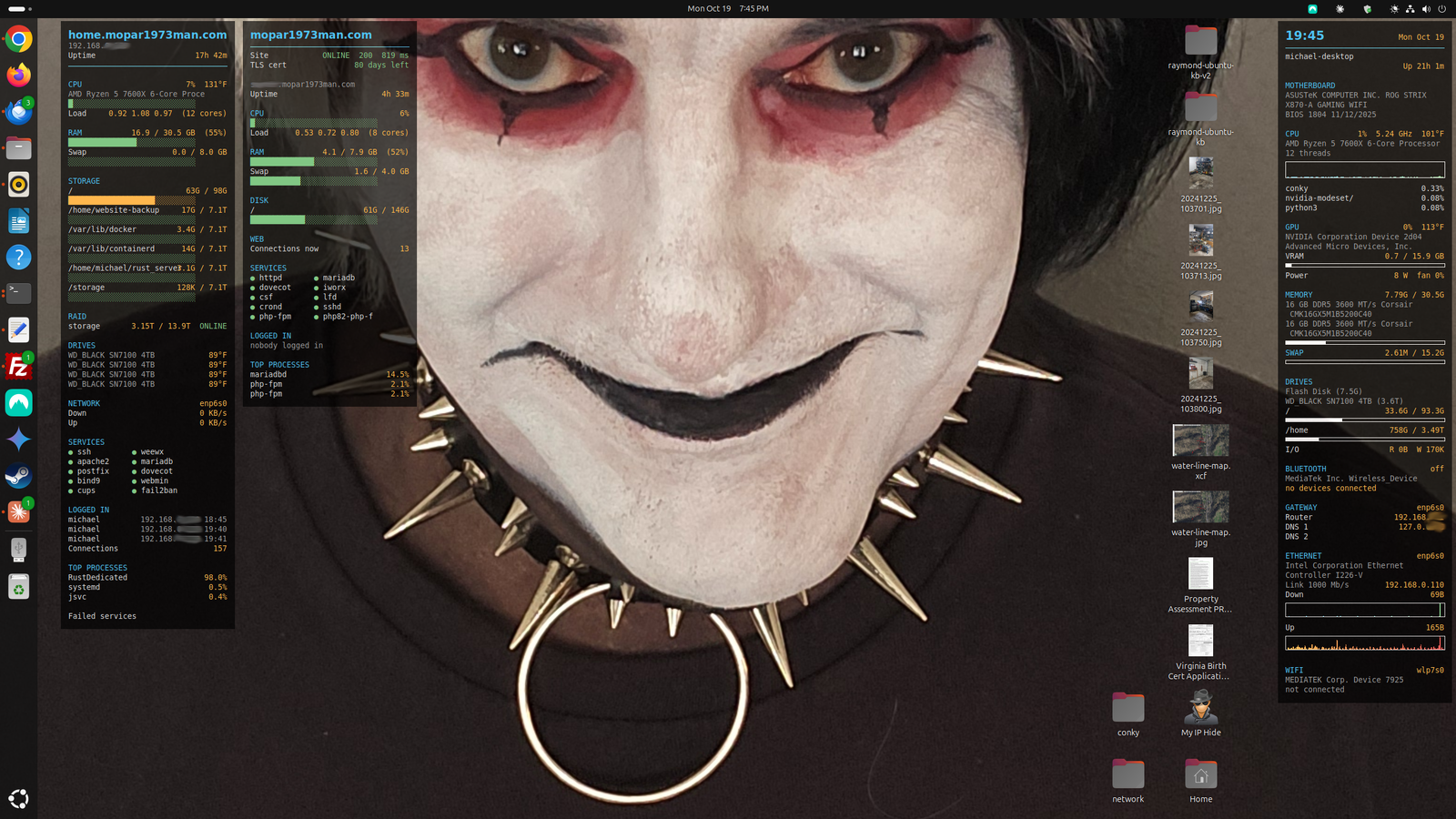
On my main workstation I run three separate Conky panels, all starting automatically at login. The two on the left watch servers, and the one on the right watches the workstation itself.
1. Home server panel (home.mopar1973man.com)
This is the full health report for my home server, shown on my desktop. The server has no monitor attached, so this panel is how I see what it's doing. From top to bottom:
Header: hostname, IP address, and uptime.
CPU: Ryzen 5 7600X usage, temperature in °F, and load average across all 12 threads, with a bar graph.
RAM and swap: used versus total, with bars. The bar turns red when memory gets high.
Storage: each mount point separately (root drive, website backup, Docker, containerd, my Rust game server, and the main storage pool), each with used versus total and its own bar.
RAID: status and capacity of the storage array. It currently reads ONLINE.
Drives: the temperature of each of the four 4TB NVMe drives.
Network: live download and upload speeds.
Services: a green dot next to each service that's running (ssh, apache2, postfix, bind9, cups, weewx, mariadb, dovecot, webmin, and fail2ban).
Logged in: who is connected, from which IP, and the number of active connections.
Top processes: the biggest CPU users, plus a "Failed services" line at the bottom. If a service ever dies, it shows up there.
2. Live web server panel (mopar1973man.com)
This one watches the production server. It's smaller and focused on whether the public site is healthy:
Site status: whether the website is ONLINE, the HTTP response code (200), and the response time in milliseconds. It's a quick check that the site is serving pages.
TLS cert: days left before the SSL certificate expires, so I never get caught by a surprise expiration.
Server info: the server's hostname and uptime.
CPU, RAM, and swap: the same bar-graph style as the home panel, with load average across 8 cores.
Disk: root drive used versus total.
Web: the number of connections to the site right now.
Services: status dots for httpd, dovecot, csf, crond, php-fpm, mariadb, iworx, lfd, sshd, and the PHP 8.2 FPM service.
Logged in: shows if anyone is logged into the server.
Top processes: the biggest CPU users. Database and PHP processes usually lead on a web server.
3. Workstation panel (michael-desktop)
The tall panel on the right side of the screen covers the machine I'm sitting at:
Header: a big clock, the date, the hostname, and uptime.
Motherboard: make, model, and BIOS version.
CPU: usage, clock speed, temperature in °F, a live graph, and the top three processes.
GPU: usage, temperature, VRAM used versus total, power draw, and fan speed.
Memory and swap: used versus total, with bars.
Drives: each disk with used versus total, plus live read and write activity.
Bluetooth, gateway, Ethernet, and Wi-Fi: link speed, live down and up graphs, and connection status.
Why separate panels instead of one big one?
Each panel can be edited, restarted, or turned off on its own.
One broken config doesn't take down the others.
Panels can be positioned independently, so the layout stays clean.
Copying a panel to another computer is just copying one file.
All the config files live in
~/.config/conky, so they're easy to back up and copy to another machine.A few choices I made
Temperatures in °F. Conky defaults to Celsius, but I think in Fahrenheit, so I switched everything over.
Autostart at login. A monitor you have to remember to launch isn't much of a monitor.
Monitoring servers remotely. The servers don't need their own screens. The desktop panels pull the numbers and show them where I'm already looking.
Color as a warning. Bars and numbers change color when something gets high, so trouble stands out without reading every line.
How they work together
The home panel is about hardware and storage health. The live panel is about whether the public site is up and the certificate is good. The workstation panel covers the machine I'm using. Side by side, one glance tells me whether everything is okay.
Ideas I'm working on
Roll it out to the other workstation. I plan to copy the same setup to my wife's desktop so both machines get the same view.
More alerts at a glance. More color changes when a temperature, RAID state, or disk goes out of its normal range.
Bigger-picture monitoring. Anything else that would warn me early if something is going wrong with the site or the servers.
Want to try it?
On Ubuntu and Debian-based systems, installing Conky is a single package install, and the rest is editing a text file. If there's interest, I'll post my actual config files and walk through how to build a panel step by step.
If you're running Conky yourself, or have ideas for what else I should be watching, post them below. I'm always looking for something new to put on the desktop.
Edited by Mopar1973Man